
Register
Your account register, with the balance after every transaction
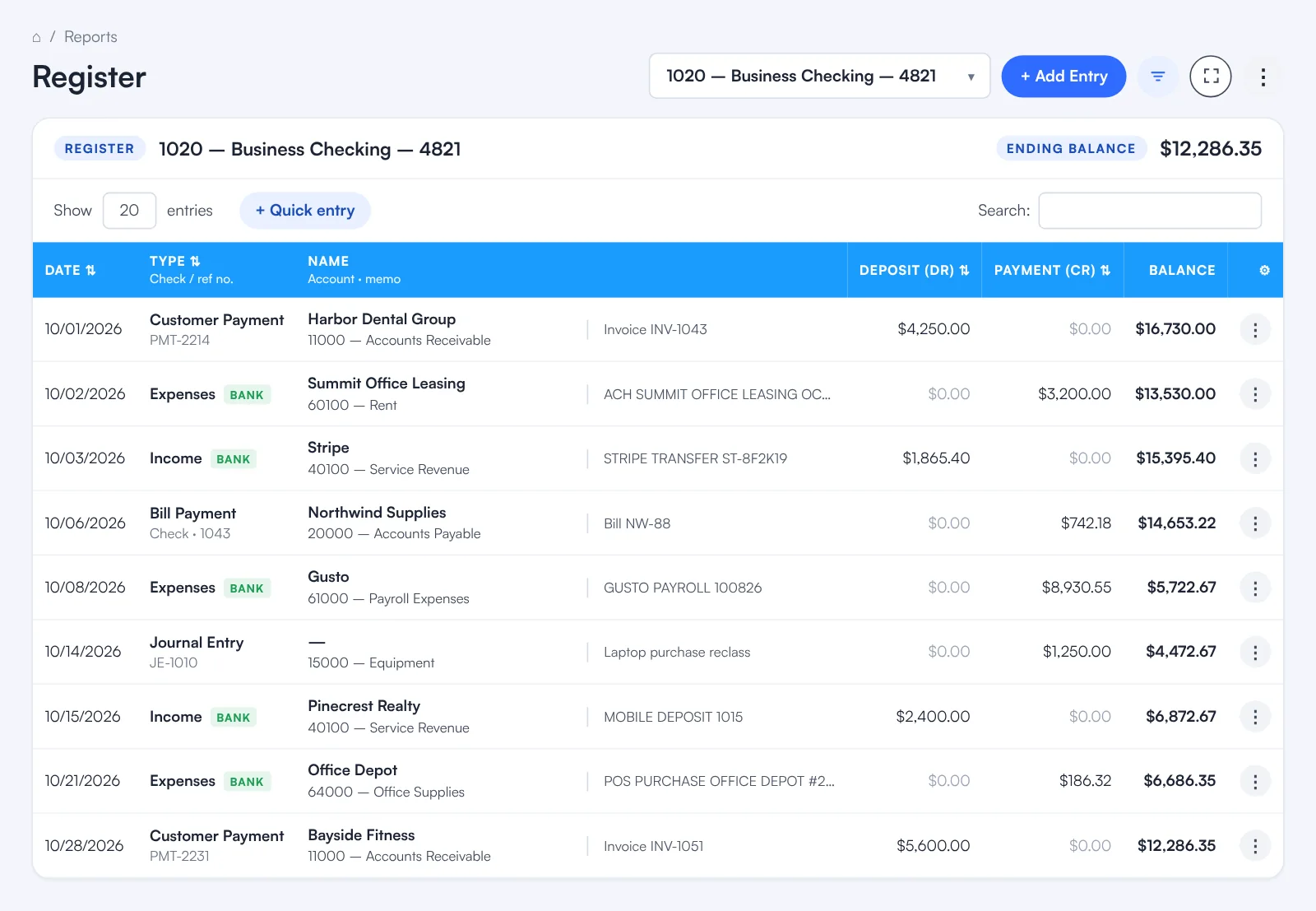
The Register shows every transaction in one account, such as a bank account, a credit card or another account in your chart of accounts, in date order with the balance after each one and the account’s ending balance at the top. Pick the account from the dropdown, or open it from the Register link in Chart of Accounts. Each row shows the date, the type with its check or reference number, the name with its account and the memo, and the amount under Deposit (DR) or Payment (CR). Add a transaction straight into the list with Quick entry or open the full form with + Add Entry, search, sort and filter the list, and use the menu on any row to open and edit that transaction.
Quick entry and editing
Add it where you’re looking, fix it where you find it
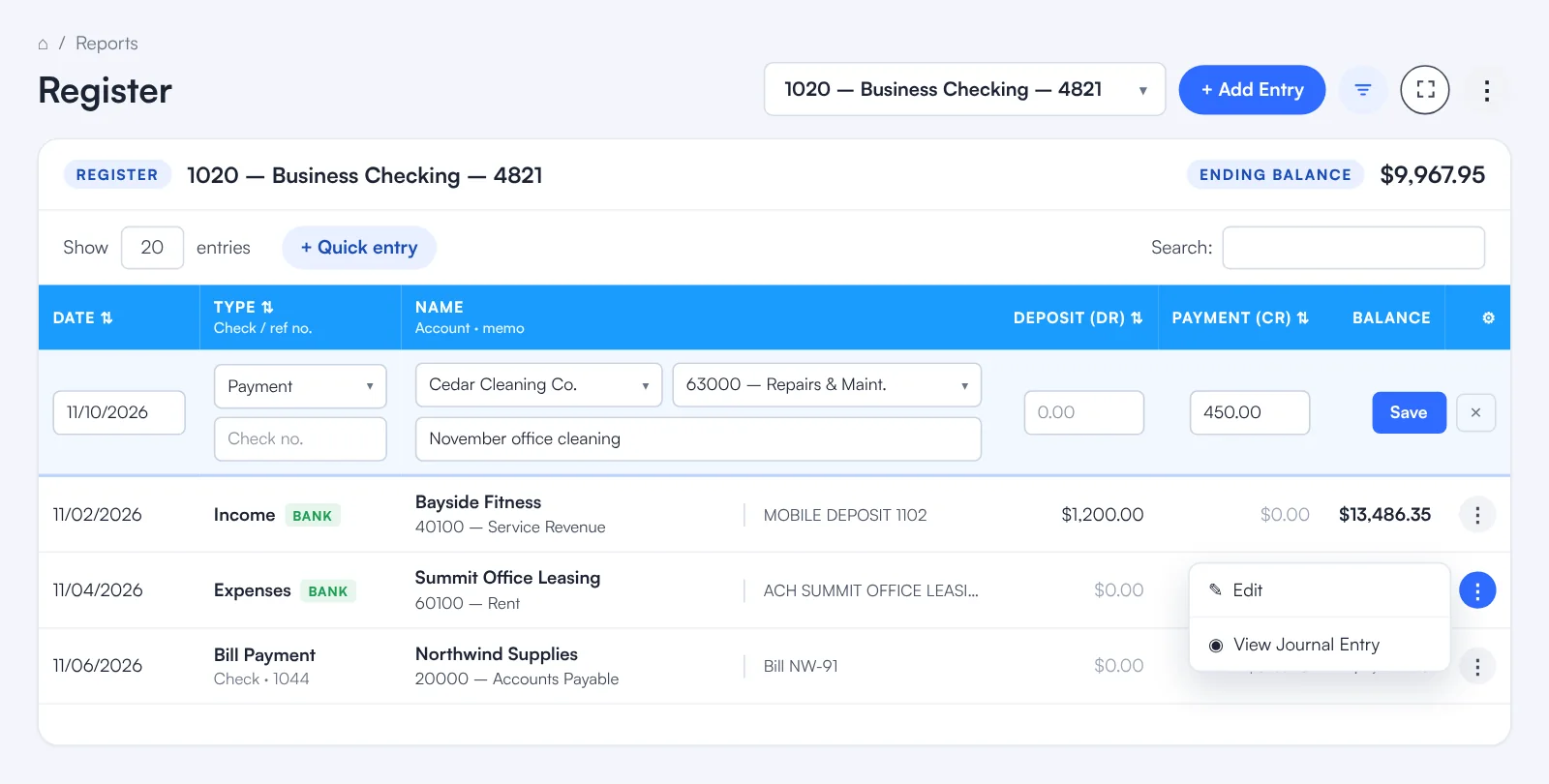
The register is not just a report. Type a transaction straight into it, and open any row to change it.
- + Quick entry opens a new row at the top of the register
- Date, type, check or reference number, name, account, memo and amount in one row
- Save, and it drops into date order with the balances recalculated
- + Add Entry opens the full entry form instead
- The ⋮ menu on any row opens that transaction to edit it
- The running balance updates after you save a change
Reading the register
Every column, explained
Each row is one transaction in the account you picked, oldest first, with the balance after it.
- DateThe transaction date. Sort by it to see the newest first.
- TypeWhat the transaction is, such as income, an expense, a payment or a journal entry, with the check or reference number underneath.
- NameThe customer, vendor or payee, with the account on the other side of the entry and the memo.
- Deposit (DR)Money in, a debit to the account.
- Payment (CR)Money out, a credit to the account.
- BalanceThe account balance after this row. A negative balance shows in red brackets.
Register
More you can do in the register
Any account, one dropdown
Choose the bank, credit card or other account at the top of the page. Its number and name stay in the header next to the ending balance.
The full form when you need it
+ Add Entry opens the full entry form for a transaction that needs more detail.
Search, sort and filter
Search any text, sort by date, type, deposit or payment, choose how many rows to show, and use the filter to narrow the list.
Room to work
Full screen gives the register the whole window when you are working through a long month.
How it works
Add a transaction with Quick entry
Open the Register
Click Register in the top menu, or the Register link next to an account in Chart of Accounts.
Pick the account
Choose the bank, credit card or other account in the dropdown at the top.
Click + Quick entry
A new row opens at the top of the register.
Fill in the row
Enter the date, type, check or reference number, name, account, memo and the deposit or payment amount.
Save
The transaction drops into date order and every balance after it is recalculated.
FAQ
Register: common questions
What is the Register?
A list of every transaction in one account in date order, with the balance after each one and the account’s ending balance at the top. It works like a checkbook register for any account.
Which accounts have a register?
Bank accounts, credit cards and the other accounts in your chart of accounts. Pick the account in the dropdown, or use the Register link next to the account in Chart of Accounts.
What do Deposit (DR) and Payment (CR) mean?
Deposit (DR) is a debit to the account, such as money coming into a bank account. Payment (CR) is a credit, such as money going out. The Balance column adds them up row by row.
What is the difference between Quick entry and + Add Entry?
Quick entry adds a transaction in a row right inside the register. + Add Entry opens the full entry form for transactions that need more detail.
Can I edit a transaction from the register?
Yes. Open the ⋮ menu on its row to open the transaction and change it. The running balance updates when you save.
How do I find a transaction?
Type any text into Search, sort a column such as Date or Payment (CR), or use the filter button to narrow the list.
Related
Works well with
Banks to Books
AI recommends how to book every bank and card transaction and shows why.
Read moreBank reconciliation
Auto-reconciliation that predicts each ending balance and reconciles every account month after month.
Read moreJournal entries
Balanced manual journal entries with any number of lines, attachments and imports.
Read moreFinancial reports
Balance sheet, P&L, cash flow, trial balance, ledgers and drill-down.
Read moreMake this the last month you do bookkeeping by hand.
Start free. Connect a bank. Watch the agents go to work.