
Setup and migration
Move from QuickBooks without retyping your books
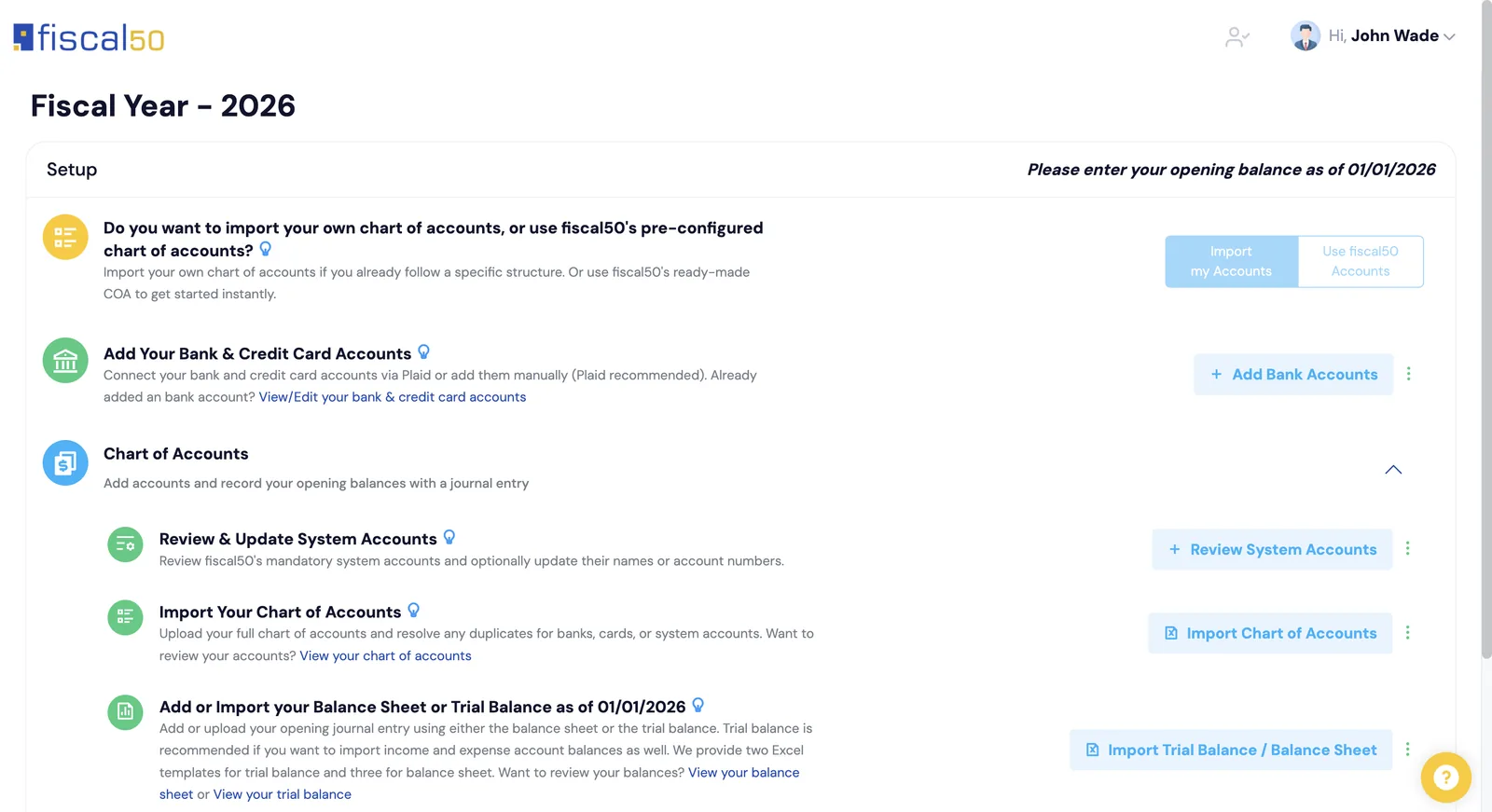
fiscal50 sets up a new company from QuickBooks in two parts: the Configuration Agent for your accounts and opening balances, and the import screens for your lists. You upload two QuickBooks Online or QuickBooks Desktop exports, your chart of accounts and your trial balance or balance sheet as of the day before your books start date. The agent matches each account by name, checks that debits equal credits, and shows a preview with errors and warnings before anything is saved. After you click Approve & Import, fiscal50 creates the chart of accounts, sets up your bank and credit card accounts, and records your opening balances in one opening journal entry. Customers, vendors, products/items and the chart of accounts can also be imported in the exact format QuickBooks exports them, using the QuickBooks template on each import screen.
See it work
Five steps, most of them automatic
Upload your QuickBooks chart of accounts and trial balance once. The Configuration Agent matches every account, shows errors and warnings before anything is saved, and records your opening balances in one entry.
Setup and migration
What the move to fiscal50 looks like
The Configuration Agent imports your QuickBooks chart of accounts and opening balances in one step, and the QuickBooks templates bring over your customers, vendors and items as they are exported.
Accounts and balances in one step
The Configuration Agent reads your QuickBooks chart of accounts and trial balance or balance sheet, matches your accounts, checks your balances and shows a preview. Nothing is imported until you click Approve & Import.
Reads QuickBooks exports as they are
The agent detects each file's layout and finds the header row and the name, number, type and amount columns, even in QuickBooks exports with indented, grouped rows.
Clear matching rules
Accounts are matched by name, never by number. Accounts that match a fiscal50 system account or one of your existing accounts are mapped to it, and everything else is created as a new account.
Errors and warnings before you import
Each issue is flagged red (error) or amber (warning) with a hint on how to fix it. Errors such as a missing account type or an unmatched balance line block the import; warnings don't.
Bank accounts ready for Plaid
Accounts typed Bank or Credit Card are set up as bank and credit card accounts, leaving out clearing, petty cash, investment and group-heading accounts. Finalize & Link Banks with Plaid continues straight to connecting them.
Lists in QuickBooks format
Customers, vendors, products/items and the chart of accounts import with Template Type set to QuickBooks. Each record is validated, and a summary shows how many were imported and which rows were skipped.
Guided start with fiscal50's own accounts
If you'd rather use fiscal50's chart of accounts, the Opening Entries page walks through bank accounts, partners, vendors, customers, assets, inventory and other balances, with a status icon on each row and a live Balance Sheet button.
How it works
How it works in fiscal50
Choose to import your own accounts
On the Setup screen, click Import my Accounts and confirm. This choice can't be changed later.
Upload your two QuickBooks files
Click Import COA and Trial Balance/Balance Sheet, choose your chart of accounts export and your trial balance or balance sheet export, and click Analyze My Files.
Review and fix
Check the status banner and the chart of accounts and balance previews. Use Errors & warnings only to find each issue, and fix it with the Account Type, Map to or account picker controls.
Approve & Import
When no errors remain and debits equal credits, click Approve & Import. fiscal50 saves the chart of accounts, sets up bank and credit card accounts, and records one opening journal entry.
Finalize
Review the Chart of Accounts, Balance Sheet and Trial Balance links, then click Finalize Configuration, or Finalize & Link Banks with Plaid.
In your books
What it posts
The Configuration Agent records your balances as of the day before your books start in one opening journal entry. Transaction history is not imported.
Example amounts.
| Account | Debit | Credit |
|---|---|---|
| Business checking | 12,500.00 | |
| Accounts Receivable | 3,200.00 | |
| Accounts Payable | 1,700.00 | |
| Retained Earnings | 14,000.00 | |
| Total | 15,700.00 | 15,700.00 |
Customer and vendor opening balances become opening receivables and payables. Imports of customers, vendors and items bring in no balances.
FAQ
Setup and migration: common questions
Which files do I need?
Your chart of accounts and your trial balance or balance sheet, both exported from QuickBooks Online or QuickBooks Desktop, as Excel or CSV files under 10 MB each.
What date should my balances be as of?
The day before the date fiscal50 starts recording your transactions. For example, for a 01/01/2026 start, use balances as of 12/31/2025.
Is anything saved when I click Analyze My Files?
No. The agent only analyzes your files and shows a preview. Nothing is saved until you click Approve & Import.
Why do I have to re-upload my files?
The agent found an error that can't be fixed on screen, such as a trial balance that doesn't balance, or more than 10 errors. Correct the files in QuickBooks and upload them again.
Does this migrate my transaction history?
No. The QuickBooks import tools cover four lists: customers, vendors, products/items and the chart of accounts. Your financial position comes across as opening balances, on the Opening Entries page or with the Configuration Agent.
Can I upload files from other accounting software?
Not at the moment. The Configuration Agent accepts QuickBooks Online and QuickBooks Desktop exports.
Related
Works well with
QuickBooks alternatives for bookkeepers
Xero, Zoho Books, Wave, FreshBooks and fiscal50 compared row by row for bookkeepers.
Read moreQuickBooks Online Accountant alternative
fiscal50, Intuit Accountant Suite, Xero and Zoho Books compared for bookkeepers, with sources.
Read moreIntegrations
Plaid bank feeds, Stripe payments and sync, Gusto payroll, QuickBooks and bank file imports.
Read moreBanks to Books
AI recommends how to book every bank and card transaction and shows why.
Read moreMake this the last month you do bookkeeping by hand.
Start free. Connect a bank. Watch the agents go to work.