
Approvals and user access
Decide who can do what, and what needs a second look
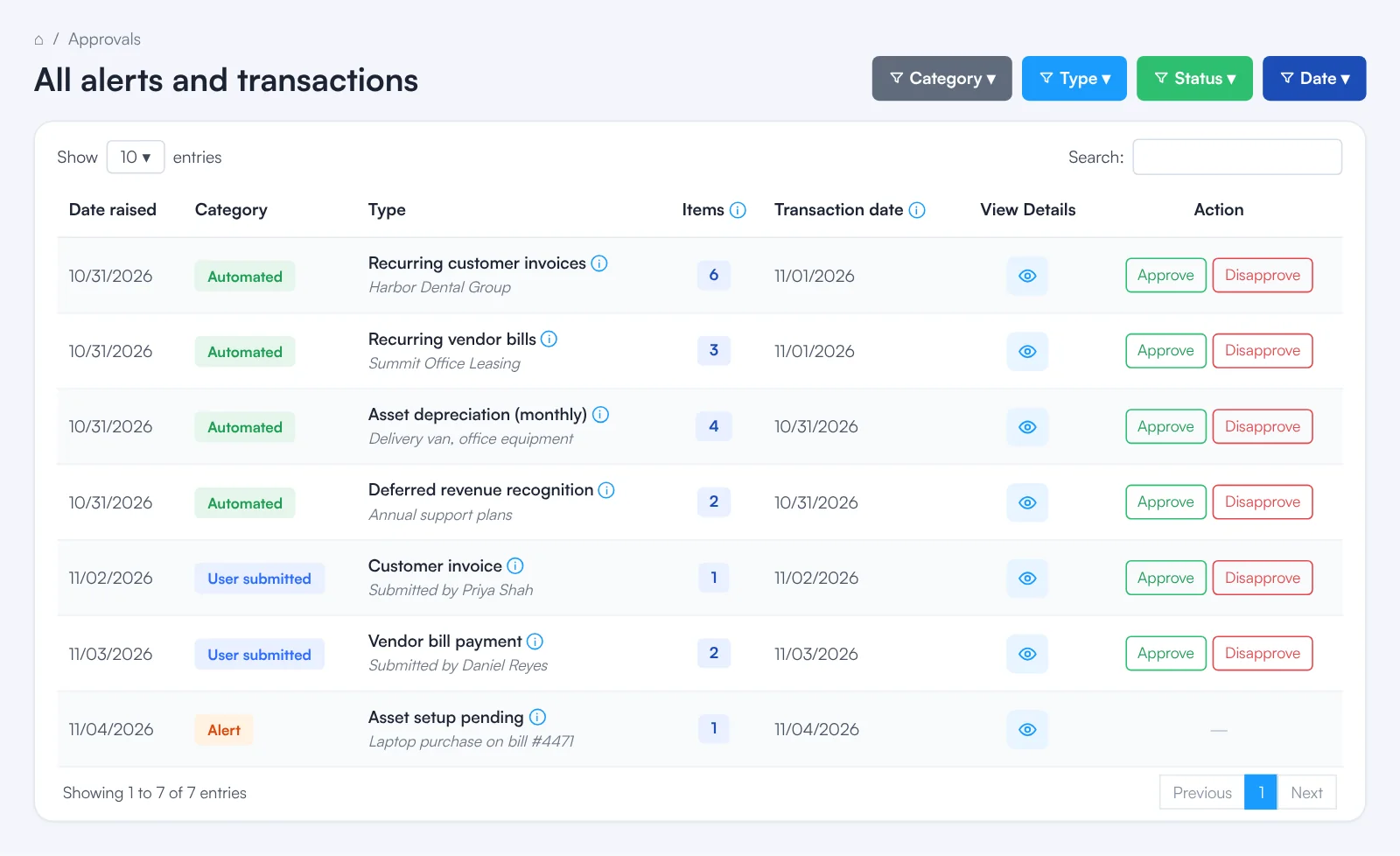
fiscal50 holds transactions for approval in two cases: automated entries such as recurring invoices, deferred income or expense and depreciation, and user-entered invoices, bills and payments whose transaction type has an approval workflow. Everything waiting shows under Needs your attention in the header and on the All alerts and transactions screen, where you review the details and approve, disapprove or edit before approving. Workflows are set per transaction type with Approver 1, Approver 2 and so on, and each approver sees an item when it reaches their turn. Sub users sign in with their own email and see only the modules, features, reports and tools you give them.
Approvals and user access
What approvals and user access in fiscal50 does for you
fiscal50 collects everything waiting for a decision — scheduled transactions, user-submitted transactions in an approval workflow, and alerts — in one place, and gives each person their own sign-in with only the access you turn on.
Needs your attention, from any screen
The approvals icon in the header shows a dot when items are waiting and opens the Needs your attention list, one row per type and date. The list refreshes automatically every few minutes and also appears as a card on your dashboard.
One screen for every approval and alert
All alerts and transactions groups the items of one type raised on one date. Filter by Category, Type, Status or Date (the last 3, 6, 9 or 12 months) to work through one type at a time.
Approve one, many or a whole row
Approve or disapprove a single transaction in the details window, every pending transaction with Approve All or Disapprove All, or a whole row from the main screen. Approved transactions are processed; disapproved ones are not.
Edit before you approve
For types that can be edited, such as recurring customer invoices, Modify opens the transaction so you can change dates, rates, quantities or lines, Preview it and Update. Changes apply to the invoices the schedule generates.
Multi-level approval workflows
In Configuration › Settings › Approvals, set the number of approvers and Approver 1, Approver 2 and so on for Customer Invoice, Customer Invoice Payment, Vendor Invoice and Vendor Invoice Payment. A transaction is completed only after the final approver approves it.
Approval for automated entries
Recurring invoices and automated deferred income or expense entries can be set to wait for review before they are processed, and depreciation entries wait before they are posted.
Sub users with their own sign-in
Add an employee, bookkeeper or accountant in three steps — Details, Access and Review. Each sub user signs in with their own email and password, so you never share yours.
Feature-level permissions
On the Transactions tab each feature has two permissions, Add and View, edit & delete; on the Reports & tools tab each report, dashboard or tool is switched on or off. A sub user adding others can give only the access they have themselves.
How it works
How it works in fiscal50
Add the people
Open Configuration › Sub Users › Add User, enter their name and the email they sign in with, choose their access, then click Create user and send invite.
Set up the approvers
In Configuration › Settings › Approvals, click the gear on a transaction type, choose Select no. of approvers, pick Approver 1, Approver 2 and so on, and click Save.
Open Needs your attention
Click the approvals icon in the header. Click a row to jump straight to it, or click See all alerts and transactions.
Review the details
Click View Details on a row to see every transaction in the group; use Modify on a pending item that needs changes, then Update.
Approve or disapprove
Click Approve or Disapprove on each transaction, or use Approve All or Disapprove All. Approved transactions are processed and show Approved.
In your books
Approval posts nothing extra. An approved item is processed as normal and posts its own entry; until then it waits.
FAQ
Approvals and user access: common questions
Why is a recurring invoice waiting for approval?
Approval required is on for recurring invoices, so each invoice the schedule creates waits for approval before it is processed.
Will a transaction go for approval if no approvers are set up?
No. A transaction goes for approval only when an approval setup exists for its transaction type. Otherwise it is recorded straight away.
Can I approve everything at once?
Yes. In the details window, click Approve All. You can also approve a whole row from the All alerts and transactions screen.
Does disapproving delete the transaction?
No — it simply isn't processed. Automated items stay unprocessed; user-submitted ones can be corrected and resubmitted.
Can more than one person use my fiscal50 account?
Yes — add each person as a sub user under Configuration (gear) › Sub Users › Add User. They work in your books with their own email and password and see only the modules, features, reports and tools you turn on.
Why are some checkboxes greyed out when I add a sub user?
You're a sub user yourself, and those items are outside your own access. You can only give access you have; ask the account owner if the person needs it.
Related
Works well with
Multiple companies
Run several companies under one login and switch in a click.
Read moreInvoicing
Invoices, recurring schedules, retainers, deferred income and customer payments.
Read moreBills and expenses
Vendor bills, emailed receipts, scheduled bills and vendor payments.
Read moreFixed assets
Asset register, straight-line depreciation, maintenance, sales and write-offs.
Read moreMake this the last month you do bookkeeping by hand.
Start free. Connect a bank. Watch the agents go to work.