
fiscal50 prints vendor checks onto pre-printed laser check stock straight from your recorded payments. You create one check setup per bank account, choosing one of three supported US Letter templates and fine-tuning where the date, payee name, amount, amount in words and memo print. Any bill payment or Make Other Payment recorded with Check as the payment method can then be previewed with its real details and printed, either one at a time or as a batch from one bank account in a single PDF with one check per page. Your bank details, MICR line and signature line stay on the pre-printed stock; fiscal50 prints only the payment details.
- Three supported check layouts
- One check setup per bank account
- Field positions in inches with a live preview
Check printing
What check printing in fiscal50 does for you
Print vendor checks from fiscal50 onto pre-printed laser check stock: set up the layout once per bank account, preview each check with the real payment details, and print one check or a whole batch in a single PDF.
Three supported check layouts
Templates for Middle Multi-Purpose Laser Computer Checks (CDM489), Laser Top QuickBooks Checks without Lines and Laser Top QuickBooks Checks with Lines, all on US Letter paper.
One check setup per bank account
Each setup holds the check template and the exact position of every printed field for one bank account, so an operating account and a payroll account each get their own layout.
Field positions in inches with a live preview
Move the Date, Payee name, Amount (numeric), Amount in words and Memo by X and Y in inches, up to 0.25 inch from the template default; the Live preview updates as you type.
Test print on plain paper
Test print (PDF) creates a sample check to print on plain paper, lay over a real check and hold up to the light, so you can check alignment without wasting check stock.
Checks from bill payments or other payments
Any payment with Check as the payment method can be printed: a vendor bill payment, or a Make Other Payment for spending with no bill behind it.
Preview with the real payment details
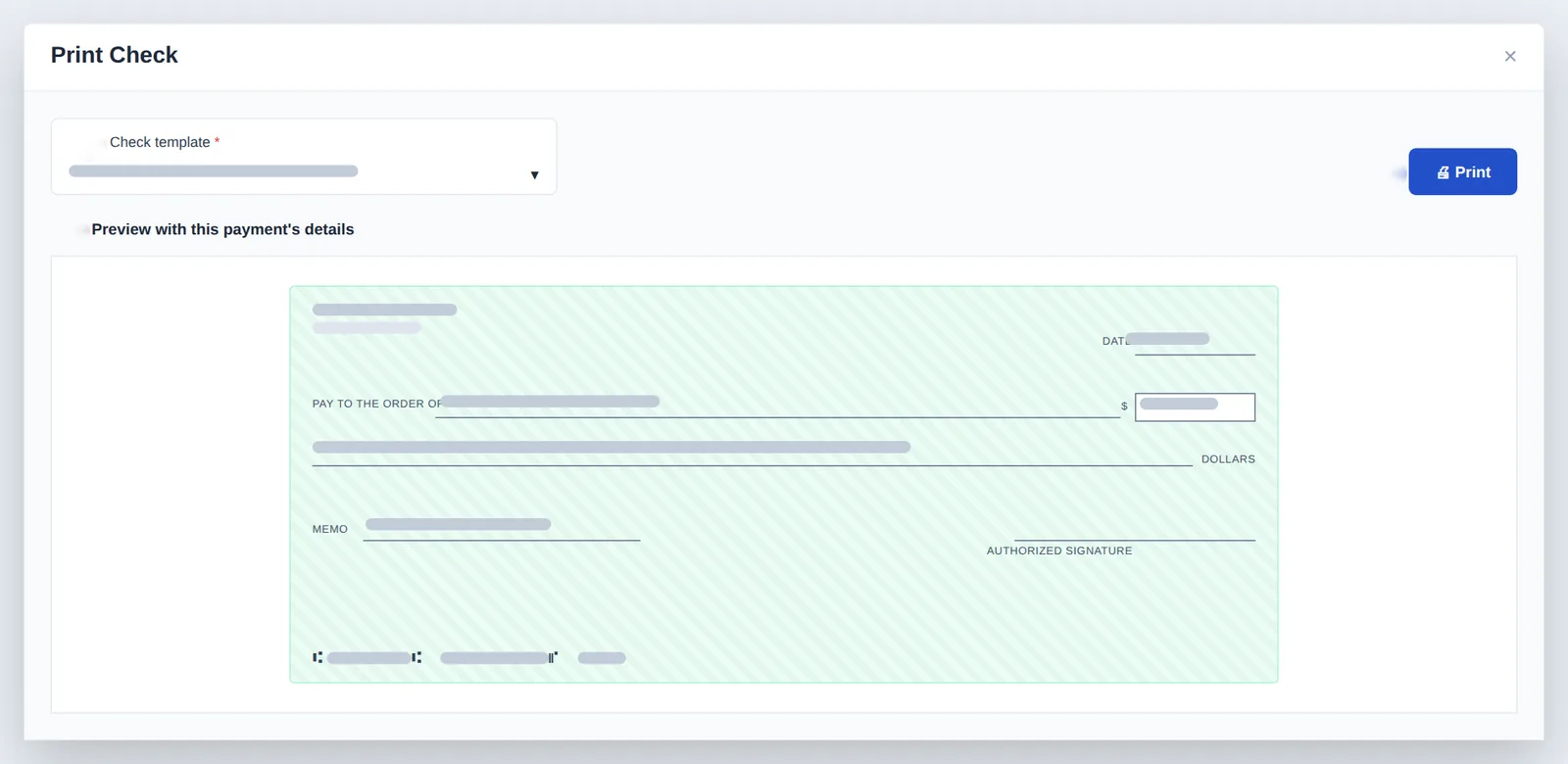
The Print Check window shows the check on the stock image with this payment's real date, payee, amount, amount in words and memo before you print.
Batch printing in one PDF
Filter the Payments list by bank, tick the checks and click Print selected checks to get one PDF with one check per page, in list order.
Amount in words in US format
The amount in words is written as dollars in words followed by the cents as NN/100, for example "One thousand two hundred thirty-four and 56/100", and long text wraps to fit the line.
How it works
How it works in fiscal50
Create the check setup
Go to Expenses › Checks › Check Print Setup, enter a Setup name and choose the Bank the checks are drawn on.
Choose the template and test print
Choose the Check template that matches your check stock; its default positions fill in. Click Test print (PDF), print on plain paper and lay it over a real check.
Fine-tune and save
If one field is slightly out of place, adjust its X or Y in inches, watch the Live preview, test again, then click Save.
Record the payment by check
Pay a bill with Check as the payment method, or use Make Other Payment with Payment Method Check, entering the Bank and the Check No. printed on the stock you will load.
Print one check or a batch
In the Payments list click Print Check in the payment's row, or choose a bank in the bank filter, tick several checks and click Print selected checks; choose the template, click Print and print the PDF at actual size.
In your books
What it posts
Printing a check posts nothing by itself. The check is the payment, and the payment carries the entry.
Example amounts.
| Account | Debit | Credit |
|---|---|---|
| Accounts Payable | 1,200.00 | |
| Business checking | 1,200.00 | |
| Total | 1,200.00 | 1,200.00 |
FAQ
Check printing: common questions
What check stock can I use?
Laser checks matching one of three templates: Middle Multi-Purpose Laser Computer Checks (CDM489), Laser Top QuickBooks Checks without Lines, or Laser Top QuickBooks Checks with Lines, all on US Letter paper.
Does fiscal50 print the bank account and routing numbers?
No. These are pre-printed on your check stock, along with the signature line. fiscal50 prints onto pre-printed check stock only, not blank check paper.
Do I need a separate setup for each bank account?
Yes. Each check setup is linked to one bank account.
How do I print several checks at once?
Filter the Payments list by bank, tick the checks, click Print selected checks, choose the template and click Print. You get one PDF with one check per page, in list order.
Why are my checks misaligned?
Usually because the PDF was scaled. Print at actual size (100%) and make sure the paper guides are snug. If a single field is off, adjust its X or Y; if everything is badly out of place, choose the right template.
Which payments can I print checks for?
Payments made with Check as the payment method: bill payments and payments made with Make Other Payment.
Related
Works well with
Bills and expenses
Vendor bills, emailed receipts, scheduled bills and vendor payments.
Read moreVendor and payee management
Vendors and payees in one place: dashboards, advances and 1099 tracking.
Read moreBank reconciliation
Auto-reconciliation that predicts each ending balance and reconciles every account month after month.
Read more1099 tracking
Track vendor payments for 1099-NEC and catch missing details early.
Read moreMake this the last month you do bookkeeping by hand.
Start free. Connect a bank. Watch the agents go to work.