
Month-end close
Close the month with nothing left hanging
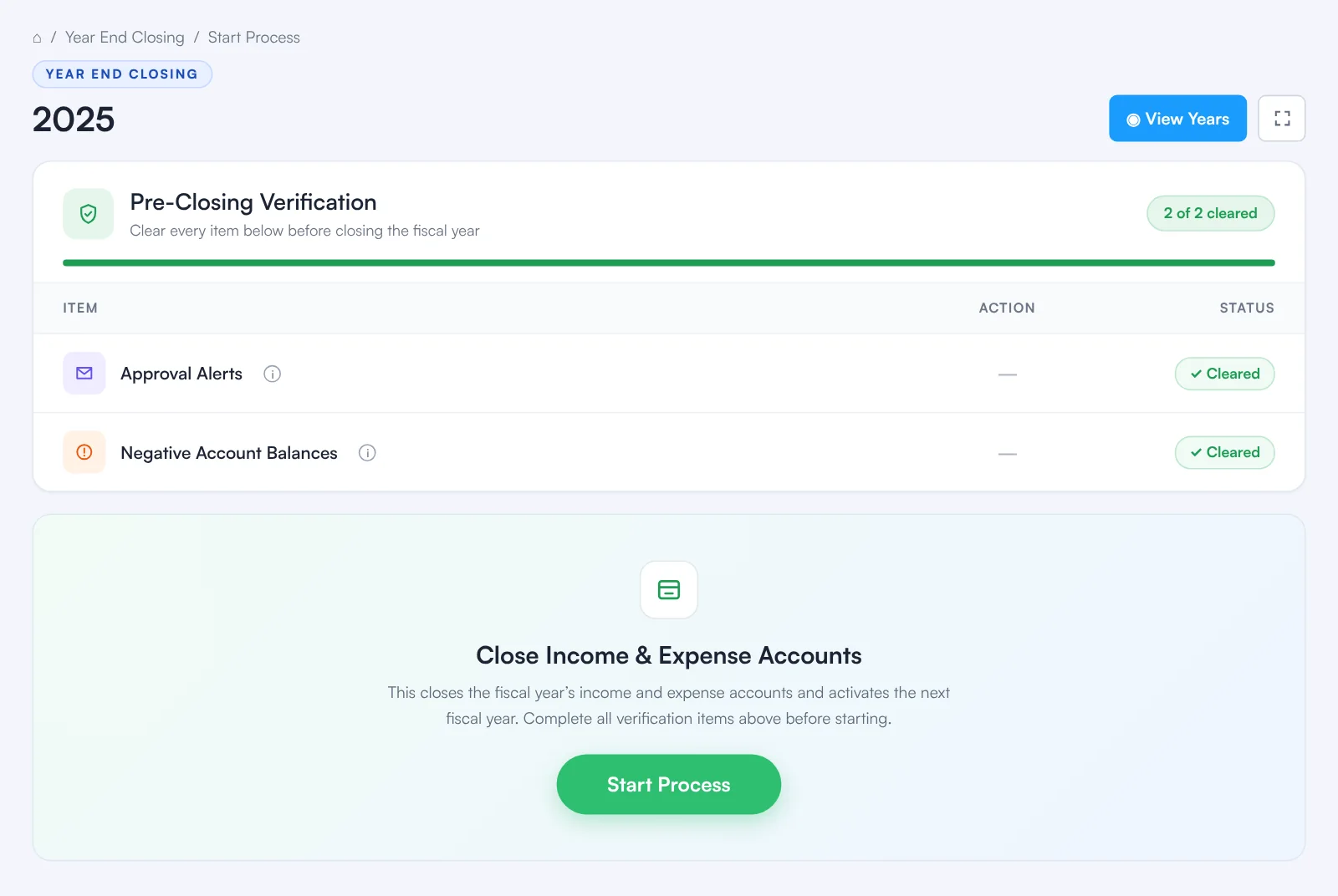
fiscal50 closes your books month by month, or a whole fiscal year at once, from Configuration › Month End Closing and Year End Closing. Before a period can close, a Pre-Closing Verification checklist confirms that every bank and credit card transaction for the period is recorded and every bank and credit card account is reconciled. It also flags anything else still pending, such as invoices, asset depreciation, transactions waiting for approval or inventory. When every item is cleared, Start Process closes the period: its status changes from Open to Closed, nothing dated in it can be created, edited or deleted, and reports for it still run with figures that no longer change.
See it work
Close the month on a checklist
Pre-Closing Verification checks that bank transactions are recorded and accounts reconciled, and flags anything else pending. Then the period closes and locks.
Month-end close
What month-end close in fiscal50 does for you
Closing locks a completed month or fiscal year after fiscal50 checks that its bank transactions are recorded and its bank accounts reconciled.
Pre-Closing Verification checklist
Each period opens a checklist that shows Action needed until each item is resolved, with a cleared counter (for example 0 of 2 cleared) and a progress bar. Start Process stays faded until every item is cleared.
Bank checks built in
Bank Transactions checks for bank and credit card transactions not yet recorded, and Bank Reconciliation checks that every bank and credit card account is reconciled for the period. Review opens the pending items so you can resolve them.
Flags anything else that's pending
Extra checklist items appear only when something else is pending for the period, such as invoices, asset depreciation, transactions waiting for approval, or inventory.
Locked periods
Once a month or year is closed, no transactions dated in it can be created, edited or deleted, so the figures you reported on can't change.
Month by month or a whole year
Month End Closing closes one completed month at a time. Year End Closing closes every month of a completed fiscal year in one step, after the same checklist.
Closes in order
Close Month appears only on the next month due, and the next month becomes available once it has ended. The Close Date records when each month was closed.
Reconciliation that feeds the close
Bank accounts reconcile month by month, credit cards statement by statement, and loans period by period. fiscal50 auto-clears matched transactions, so you handle only the exceptions until the Difference is 0.
How it works
How it works in fiscal50
Open Month End Closing
Click the Configuration (gear) icon at the right end of the main menu, then Month End Closing. The Closing Process screen lists the completed months of the selected fiscal year.
Click Close Month
Click Close Month on the next month due. The Start Process screen opens with the Pre-Closing Verification checklist for that month.
Clear each item
Click Review next to Bank Transactions and record each pending transaction, complete the bank reconciliation for every bank and credit card account, and resolve any other item. The note under Start Process says what is still blocking.
Start Process
When every item is cleared, click Start Process and confirm. You may be asked to enter your fiscal50 password again.
Check the month is closed
On the Closing Process screen the month's Status reads Closed and its Close Date is filled in.
In your books
Closing posts nothing and moves no balances to Retained Earnings. It locks the period, so nothing dated in it can be created, edited or deleted.
FAQ
Month-end close: common questions
Which software helps a bookkeeper close the books for multiple clients faster?
fiscal50 closes each client’s month after a Pre-Closing Verification checklist confirms that bank transactions are recorded and accounts reconciled. Bookkeepers who manage many clients use the fiscal50 Bookkeeper Workspace, where every client’s close sits on one board with checks that tick themselves from fiscal50 data and a second person’s sign-off (Practice and Firm plans).
What should a month-end close checklist include?
In fiscal50 the checklist confirms every bank and credit card transaction is recorded and every bank and credit card account is reconciled, then flags anything else pending for the period, such as invoices, asset depreciation, transactions waiting for approval or inventory. The month-end close checklist page lists the full set of steps, including a client onboarding checklist for bookkeepers.
Does closing a month post an entry to Retained Earnings?
No. Closing posts nothing and moves no balances. It locks the period so nothing dated in it can be created, edited or deleted. Income and expense accounts start at zero each financial year, and earlier years’ profit shows in Retained Earnings.
Can I add or edit transactions in a closed month?
No. A closed month or year is locked. Transactions dated in that period can't be created, edited or deleted.
Can I close the current month?
No. A month can be closed only after it has ended. Only completed months appear on the Closing Process screen.
Can I skip a month?
No. Months are closed in order. The Close Month button appears only on the next month due to be closed.
Is bank reconciliation required before closing?
Yes. Every bank and credit card account must be reconciled for the period before it can be closed.
Why is the Start Process button faded?
At least one checklist item still shows Action needed. The note under the button tells you what must be done first.
Does closing change my reports?
No. Every report still runs for closed periods, and their figures no longer change.
Related
Works well with
Month-end close checklist
A step-by-step month-end close checklist for bookkeepers, plus a client onboarding checklist.
Read moreBank reconciliation
Auto-reconciliation that predicts each ending balance and reconciles every account month after month.
Read moreFinancial reports
Balance sheet, P&L, cash flow, trial balance, ledgers and drill-down.
Read moreFor bookkeepers and firms
The Bookkeeper Workspace: every client in one login, month-end for every client on one board, client portal, CRM and billing. Connect is free.
Read moreMake this the last month you do bookkeeping by hand.
Start free. Connect a bank. Watch the agents go to work.