
Get paid by link or QR code, and have it booked for you
Checkout and online payments
fiscal50 takes online payments through Stripe: in Online Payments Setup you connect Stripe, wait for Stripe to verify your account (Pending, then Active), and map a Stripe Balance asset account and a Stripe Fees expense account. Once that is done, invoices can carry a Pay Invoice Now button and you can create checkouts — payment pages you share as a link or QR code, or open on your own screen to take payment in person. The customer pays by card or US bank account without a fiscal50 login and gets a printable receipt. fiscal50 then records the payment, creates a paid invoice with the same items and posts it to the account mapped to Stripe, so there is no invoice to prepare and no payment to record by hand.
See it work
A checkout page that does its own bookkeeping
Share a link or QR code. Each payment creates a paid invoice with the same items and is recorded for you.
Checkout and online payments
What checkout and online payments in fiscal50 does for you
Create a secure payment page you share as a link or QR code; the customer pays by card or US bank account, and fiscal50 creates a paid invoice and records the payment automatically.
Shareable payment pages
Share a checkout as a payment link by email, text or chat, let the customer scan its QR code, or click Take Payment Now to take the payment on your own screen in person.
Paid invoice and posting done for you
When a payment succeeds, fiscal50 records it against the checkout, creates a paid invoice with the same items, amounts and tax, and posts it to the account mapped to your Stripe account.
Products, flat-rate and hourly services
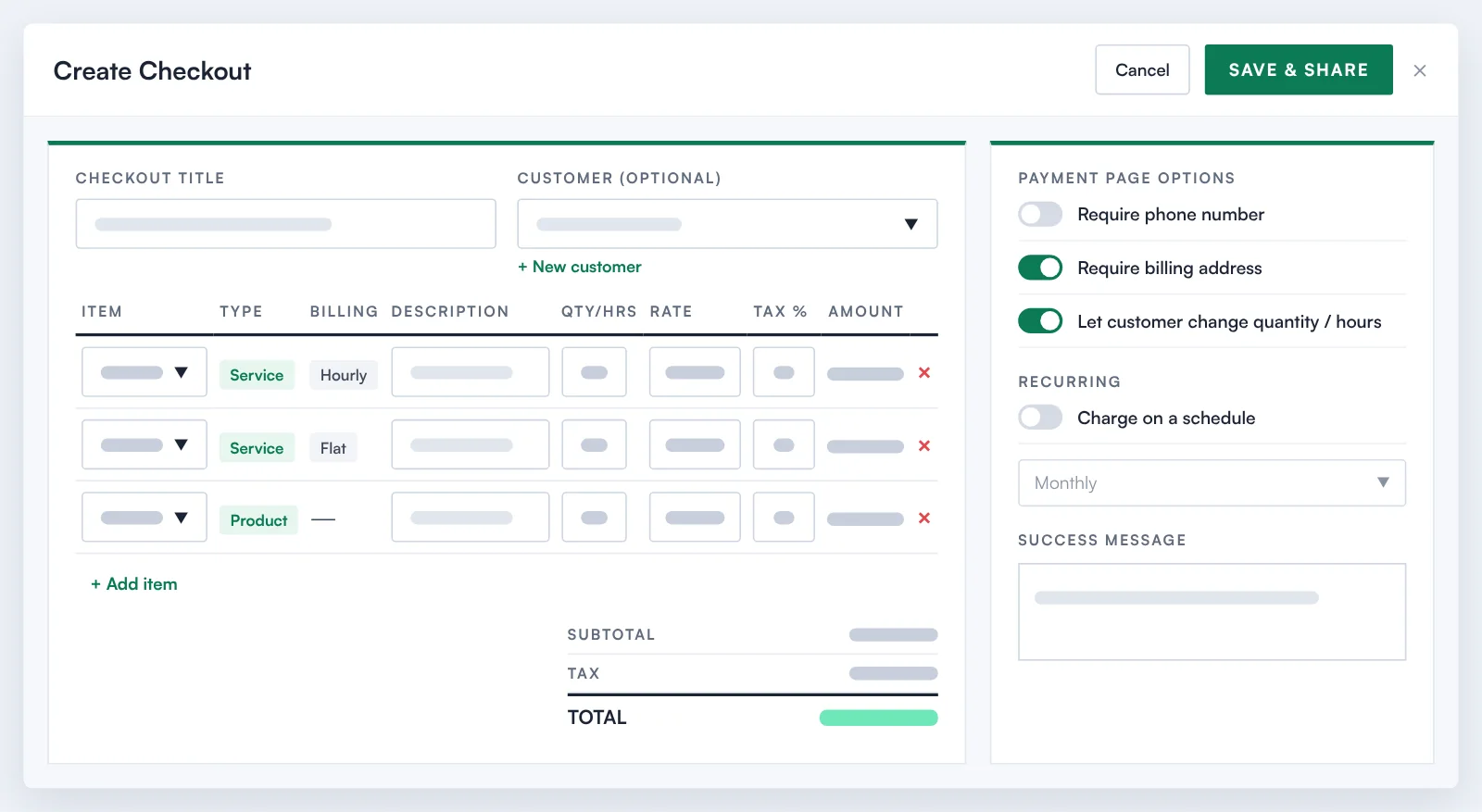
Add as many items as you need: products are quantity × rate, flat services are one fixed fee, and hourly services are hours × rate.
Recurring checkouts
Switch on Charge on a schedule and choose Weekly, Monthly or Yearly. The customer pays the first charge on the page, then the card is charged automatically, and each renewal gets its own paid invoice.
Payment page options
Require a phone number or billing address, and optionally let the customer change quantities or hours. Rates and tax can never be changed by the customer.
Guided Stripe setup
A red, amber or green banner on Online Payments Setup tells you the next step, and fiscal50 checks with Stripe automatically until your account moves from Pending to Active.
Stripe payouts for bank reconciliation
View Payouts lists each transfer Stripe sent to your bank with its date, amount and statement descriptor, so you can match Stripe deposits when reconciling.
One list for every checkout
Sales › Checkouts shows Collected, Payments, Online and Paid cards, status and date filters, search, and Actions to share, edit, turn offline or online, and delete.
How it works
How it works in fiscal50
Connect Stripe
Go to Sales → Invoices → Online Payments Setup and click Connect. Complete Stripe's form (business details and tax ID, owner or representative, payout bank account) and submit. The status shows Pending until Stripe verifies the account, then Active.
Map your Stripe accounts
Once the status is Active, click COA Mapping, choose an asset account for Stripe Balance and an expense account for Stripe Fees, and click Apply. The banner turns green: "You're all set!"
Create a checkout
Go to Sales → Create Checkout. Enter a Checkout title, choose a customer or leave it blank for a walk-in, and add items with + Add item, checking Qty/Hrs, Rate and Tax %.
Set options and save
Set the payment page options, switch on Recurring if needed, write a Success message, and click Save & Share.
Share and get paid
In the Share window copy the payment link, show the QR code, or click Take Payment Now. After payment, fiscal50 records it and creates the paid invoice.
In your books
What it posts
When a customer pays, fiscal50 creates the paid invoice and records the payment to the Stripe Balance account you mapped.
Example amounts.
| Account | Debit | Credit |
|---|---|---|
| Stripe Balance | 100.00 | |
| Accounts Receivable | 100.00 | |
| Total | 100.00 | 100.00 |
Stripe’s fees belong in the Stripe Fees account you mapped, and a payout moves the money from Stripe Balance to your bank account.
FAQ
Checkout and online payments: common questions
Does my customer need a fiscal50 account to pay a checkout?
No. They open the link, pay securely and get a receipt without logging in.
How can my customer pay?
By card or US bank account. Recurring checkouts accept cards only.
Do I need to create an invoice or record the payment after a customer pays?
No. fiscal50 creates a paid invoice automatically with the same items and amounts, and posts the payment to the account mapped to your Stripe account.
Why is my Online Payments Setup status Pending?
Either your Stripe setup is not finished, or Stripe is still verifying your account. After you submit Stripe's form, fiscal50 checks with Stripe automatically and changes the status to Active once Stripe verifies it.
Why is my Stripe payout less than what my customers paid?
Stripe deducts its processing fees before sending the payout, and it may group several payments into one transfer to your bank.
Can a checkout link be paid more than once?
A one-time checkout can be paid once; it is then marked Paid and the page shows it is already paid. Turn Online reopens it. A recurring checkout charges the customer's card automatically weekly, monthly or yearly.
Related
Works well with
Invoicing
Invoices, recurring schedules, retainers, deferred income and customer payments.
Read moreIntegrations
Plaid bank feeds, Stripe payments and sync, Gusto payroll, QuickBooks and bank file imports.
Read moreBank reconciliation
Auto-reconciliation that predicts each ending balance and reconciles every account month after month.
Read moreProposals
Send proposals customers approve online, then invoice in installments.
Read moreMake this the last month you do bookkeeping by hand.
Start free. Connect a bank. Watch the agents go to work.