
Customer management
Every customer, with the full story behind the balance
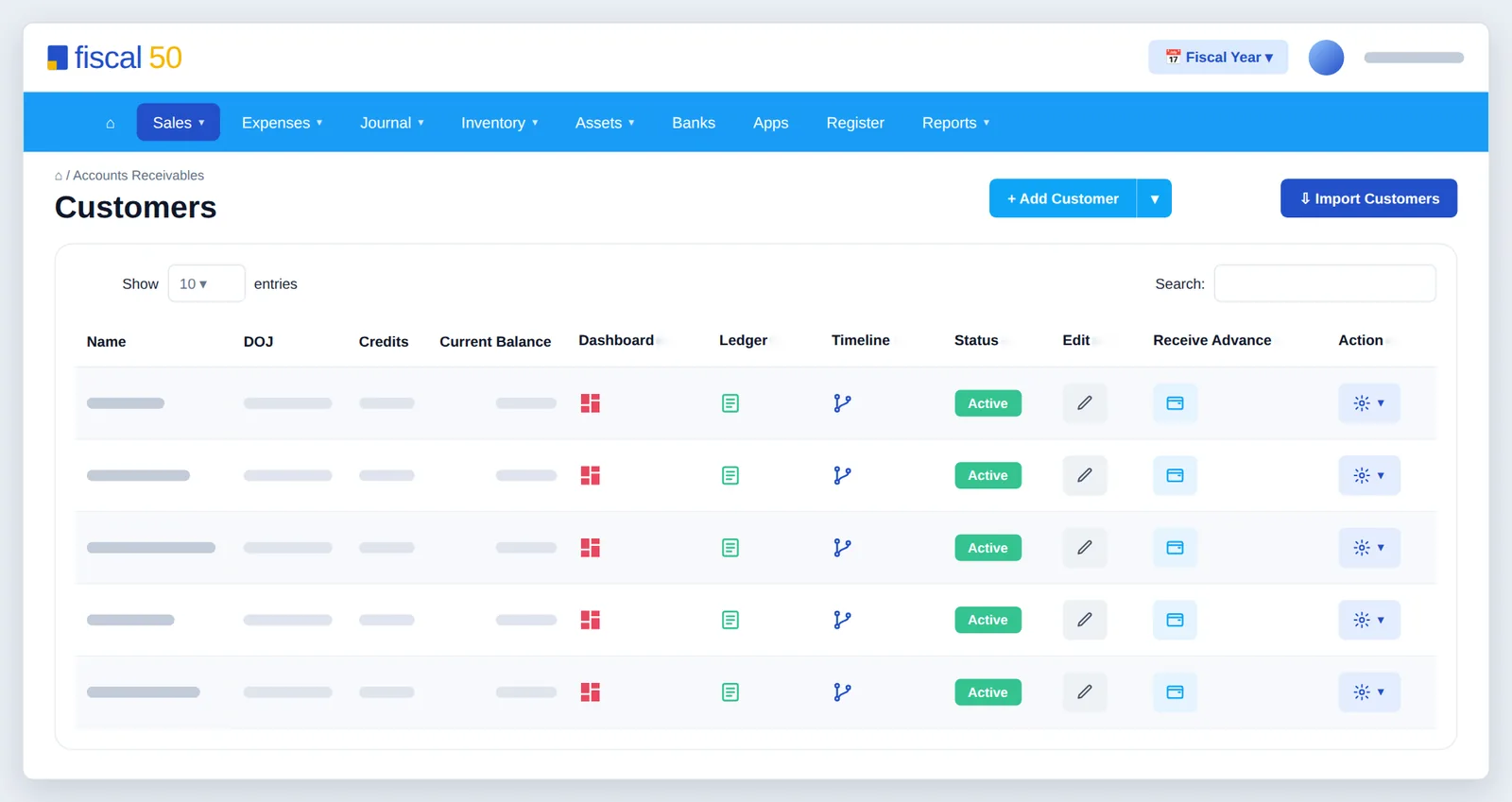
fiscal50 keeps your customers in one Customers list with each one’s credits, current balance and status. Icons on every row open that customer’s dashboard, ledger and timeline, and the Action menu creates an invoice, receives a payment or sends an invoice reminder e-mail. The Customer Dashboard shows monthly and annual revenue, pending invoices, total credits and the amount due, with monthly sales and the items bought. Money a customer pays before you invoice them is kept as credit and applied to their next invoice or payment. Add customers one at a time with a quick or detailed form, or import many at once.
Customer Dashboard
One customer, everything at a glance
Click the dashboard icon on any customer’s row to see how they buy and what they owe.
- Monthly Revenue and Annual Revenue from this customer
- Pending Invoices, Total Credits and Total Amount Due
- Monthly sales for the year and the items they buy most
- All Income and Invoices tabs, with each invoice’s status
 fiscal50
Timeline and ledger
The story behind every balance
When a customer asks about their balance, the answer is two clicks away.
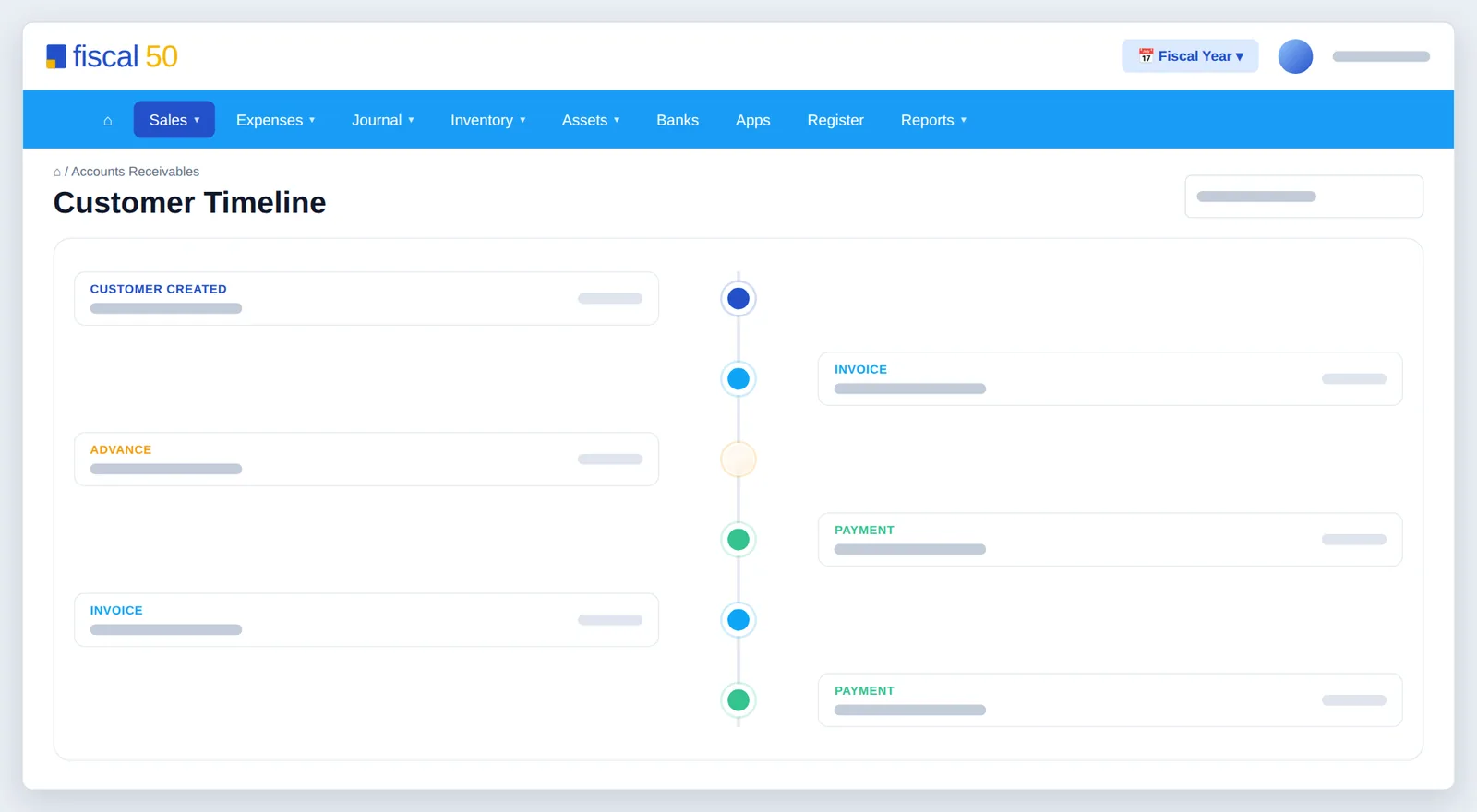
- The Timeline lists invoices, advances and payments in date order
- The Ledger shows every transaction with the running balance
- Send the Customer Statement for any dates, in Excel or PDF
Receivables
Know who owes you, and how late it is
The Receivables Dashboard and the receivables reports show your whole customer book at once.
- Total receivables, invoices, income due and overdue on one screen
- Days sales outstanding by month, so you see collections speeding up or slowing down
- Outstanding invoices, oldest first, with a Collect button on each
- A/R Aging and Sales by Customer in Reports
Customer management
More you can do with customers
Everyday actions from the row
The Action menu creates an invoice, receives a payment, opens Advance Transactions or sends an invoice reminder e-mail without leaving the list.
Advances become credit
Record money paid before you invoice with Receive Advance. It shows in the customer’s Credits and can be applied on their next invoice, up to the credit available, or on their next payment.
Quick or detailed add, plus import
Add a customer in seconds with the quick form or capture contact details, addresses and terms with the detailed form. Import Customers brings in many at once.
Sales tax from the customer’s state
The customer’s State fills in sales tax on their invoices automatically when you have a sales-tax rule for that state.
How it works
Add a customer
Open Add Customer
Go to Sales › Customers and click + Add Customer for the quick form, or the arrow next to it for the detailed form.
Name the customer
Choose Company or Individual, enter the company and contact names, and pick or type the Display name used in lists and on invoices.
Set terms and state
Choose Terms (Due on Receipt, Net 15, Net 30 or Net 60) and the customer’s State, so sales tax fills in on their invoices.
Add an opening balance
Enter what the customer already owed you when you started with fiscal50; it becomes the opening balance in their ledger.
Save and invoice
Click Save. The customer appears in the list, and Create Invoice in the Action menu starts their first invoice.
FAQ
Customer management: common questions
What is the difference between a customer’s Credits and Current Balance?
Credits is money the customer has available to use, such as advances or overpayments. Current Balance is the amount the customer currently owes you.
What does the Customer Dashboard show?
Monthly Revenue, Annual Revenue, Pending Invoices, Total Credits and Total Amount Due for that customer, a chart of their monthly sales, the items they buy, and All Income and Invoices tabs.
How do I record money a customer pays before I invoice them?
Use Receive Advance on the customer’s row. The amount is kept as credit and can be applied on their next invoice, up to the credit available, or on their next payment.
Can I import my customers?
Yes. Import Customers brings many customers in at once, including a customer list exported from QuickBooks.
What happens to an overpayment?
An amount received beyond the invoices you selected on Receive Payment becomes customer credit, ready to use on a later invoice.
Can I send a customer a statement?
Yes. The Customer Statement report lists a customer’s invoices, payments and balance for the dates you choose, and exports to Excel or PDF.
Related
Works well with
Invoicing
Invoices, recurring schedules, retainers, deferred income and customer payments.
Read moreCheckout and online payments
Shareable payment pages, QR codes, and card and bank payments through Stripe.
Read moreProposals
Send proposals customers approve online, then invoice in installments.
Read moreFinancial reports
Balance sheet, P&L, cash flow, trial balance, ledgers and drill-down.
Read moreMake this the last month you do bookkeeping by hand.
Start free. Connect a bank. Watch the agents go to work.