
Bill and receipt uploads
Snap it, upload it or e-mail it in. fiscal50 files it.
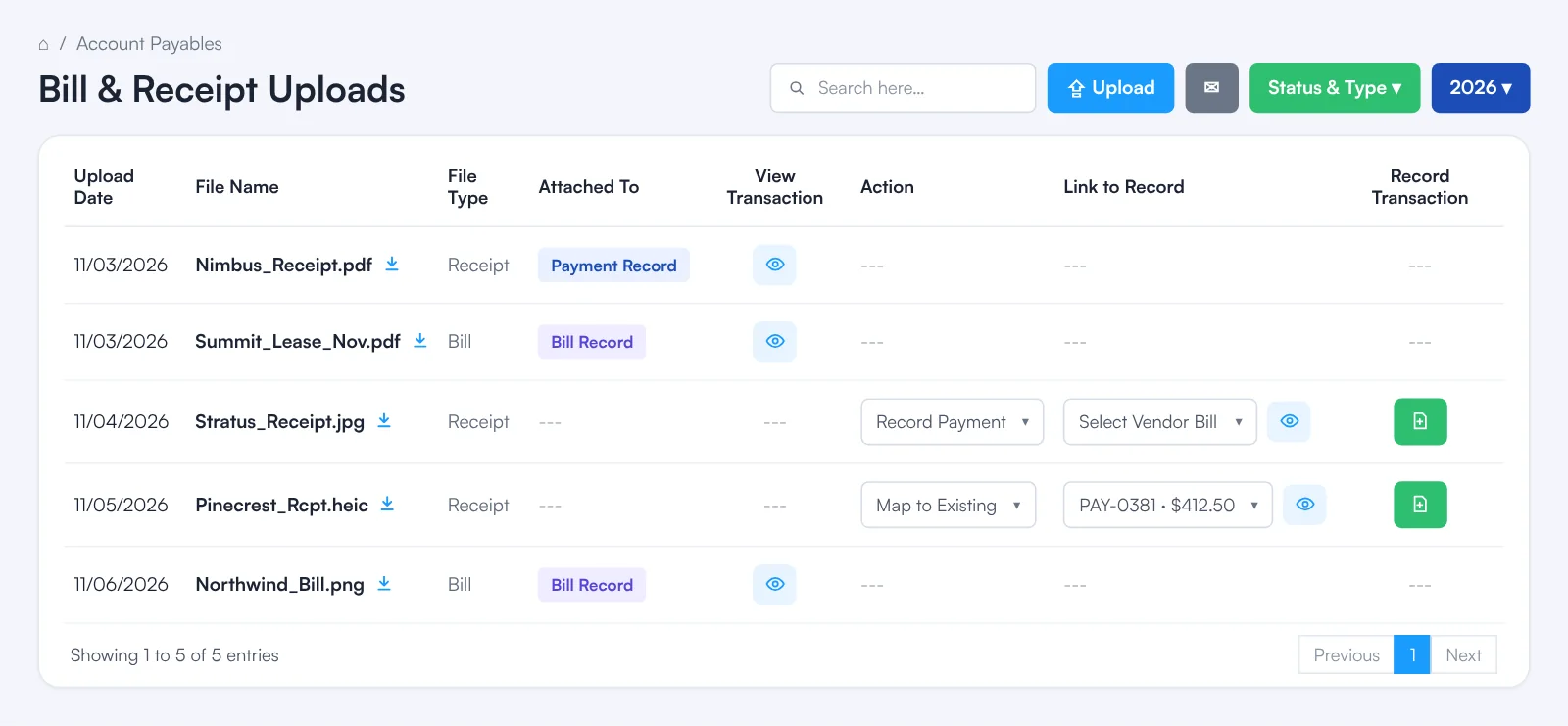
Every bill and receipt lands on Expenses › Bill & Receipt Uploads. Upload PDF, JPG, JPEG, PNG, HEIC or HEIF files up to 5 MB each from a computer or a phone, or e-mail them in from your registered fiscal50 address. fiscal50 reads the vendor, date, amount and document number and attaches each document to the matching record: receipts to payments or bank feed transactions, bills to bill records. A document that didn’t match waits in the list with nothing under Attached To. Choose what to do with it in the Action column, pick the record under Link to Record and click Record Transaction.
- Upload from a computer or phone
- Or e-mail it in
- Read for you
How a document gets filed
From your phone or inbox to the right transaction
Upload a file or e-mail it in. fiscal50 reads it and attaches it where it belongs, so the paperwork sits next to the numbers.
- PDF, JPG, JPEG, PNG, HEIC or HEIF, up to 5 MB each
- Upload from a computer or a phone, or e-mail it in
- Vendor, date, amount and document number read for you
- Receipts attach to payments or bank feed transactions
- Bills attach to bill records
- Attached To shows Payment Record or Bill Record
 fiscal50
E-mail it in
Forward it, and it’s filed
Bills and receipts that arrive by e-mail don’t need downloading first. Forward them to fiscal50 and they land in the same list as your uploads.
- The envelope button on Bill & Receipt Uploads shows the addresses to use
- One address is for receipts and one is for bills, so the address sets the file type
- Send from your registered fiscal50 e-mail address, the one you sign in with
- Up to 5 MB per e-mail, in the same file formats as uploads
Didn’t match?
Finish it in three clicks
A document that didn’t match anything waits in the list with nothing under Attached To. Nothing gets lost.
- ActionMap it to an existing transaction, or record a payment against a vendor bill.
- Link to RecordPick the payment or vendor bill. The eye icon previews it first.
- Record TransactionClick the green button and the document is attached.
Bill and receipt uploads
More you can do with uploads
Read for you
The vendor, date, amount and document number are read from the document, so you don’t type them.
One click to the transaction
The eye icon under View Transaction opens the payment or bill the document is attached to.
Find any document
Search by file name, filter with Status & Type and switch the year. The download icon next to each file name gives you the original.
Bills and receipts, both
File Type shows Bill or Receipt for every document, whether it was uploaded or e-mailed in.
What it posts
The document posts nothing by itself
Uploading a bill or receipt posts nothing by itself; the bill or payment it is attached to carries the entry. When you record a payment from an unmatched receipt, that payment posts like any other.
| Account | Debit | Credit |
|---|---|---|
| Accounts Payable | 412.50 | |
| Bank | 412.50 | |
| Total | 412.50 | 412.50 |
The expense was recorded with the bill; the receipt is attached to the payment.
Example amounts.
How it works
Upload a receipt and match it
Open the uploads list
Go to Expenses › Bill & Receipt Uploads.
Upload the file
Click Upload, choose the file and set its type to Receipt (or Bill). Or e-mail it in from your registered address.
Let fiscal50 read it
fiscal50 reads the vendor, date, amount and document number and attaches the receipt to the matching payment or bank transaction.
Check Attached To
Payment Record or Bill Record means it is filed; the eye icon opens that transaction.
Finish any that didn’t match
Pick an option in Action, choose the record in Link to Record (the eye icon previews it) and click Record Transaction.
FAQ
Bill and receipt uploads: common questions
Which files can I upload, and how large?
PDF, JPG, JPEG, PNG, HEIC and HEIF. The limit is 5 MB per file when uploading and 5 MB per e-mail when e-mailing.
How do I e-mail documents in?
Click the envelope button on Bill & Receipt Uploads to see the addresses, then send the document from your registered fiscal50 e-mail address. The address you send it to tells fiscal50 whether it is a bill or a receipt. E-mails from other addresses can’t be linked to your account.
Does uploading a bill create the bill?
No. Uploading a bill attaches it to an existing bill record, and uploading a receipt attaches it to an existing payment or bank transaction. For a receipt with no payment yet, record the payment from the Action column.
Why wasn’t my document matched?
The payment or bill may not be recorded yet, the details may be hard to read, or the type may be wrong. It waits in the list; match it yourself from the Action and Link to Record columns.
Can I upload from my phone?
Yes. Open fiscal50 in your phone’s browser and upload the photo as it is; HEIC, JPG and PNG are supported.
Where can I see the document later?
On Bill & Receipt Uploads, where the download icon gives you the original, and on the transaction it is attached to.
Related
Works well with
Bills and expenses
Vendor bills, emailed receipts, scheduled bills and vendor payments.
Read moreVendor and payee management
Vendors and payees in one place: dashboards, advances and 1099 tracking.
Read moreBanks to Books
AI recommends how to book every bank and card transaction and shows why.
Read moreCheck printing
Print vendor checks on standard check stock, one or many at a time.
Read moreMake this the last month you do bookkeeping by hand.
Start free. Connect a bank. Watch the agents go to work.